
 By
There’s something particularly irritating about a computer that takes longer to open a document than it takes you to read it. You click the file, nothing happens, so you click again. A few seconds later, two copies open at once. Meanwhile, the browser has stopped responding, and you’ve completely forgotten what you were about to do.
Before typing “why is my computer so slow” into Google and convincing yourself that you need a new laptop, have a closer look at what’s happening.
A computer that’s struggling to open a spreadsheet might have a completely different problem from one that freezes halfway through a video call. Sometimes the fix takes less than five minutes. Sometimes there’s a piece of hardware that’s simply reached its limit.
Knowing the difference could save you a fair amount of money.
What Is Actually Slowing Down Your Computer?
Start with a simple observation. Is the computer slow all the time, or does it only struggle when you’re doing something specific?
If opening a folder takes forever but watching a video works perfectly well, your storage drive might deserve a closer look. If everything runs smoothly until you open a dozen browser tabs, memory could be the issue.
The following examples offer a useful starting point.
| Computer Problem | Possible Cause |
|---|---|
| Takes several minutes to start | Too many startup programs |
| Freezes during video meetings | Heavy CPU or memory usage |
| Becomes slow after getting warm | Overheating |
| Takes ages to open files | Slow or failing storage drive |
| Browser tabs frequently reload | Limited available RAM |
| Suddenly becomes sluggish | Background updates or unwanted software |
| Only websites load slowly | Internet connection problems |
Don’t assume that every delay is a computer problem. If your documents open quickly but YouTube keeps buffering, checking your internet connection makes more sense than replacing your laptop’s memory.
12 Ways to Fix a Slow Computer
1. When Did You Last Restart It?
Closing the lid of a laptop isn’t the same as restarting it. Neither is leaving it on overnight with the screen switched off.
A computer that’s been running for several days may have applications sitting in the background, unfinished updates, and processes that haven’t released the resources they were using.
Save whatever you’re working on and choose Restart from the Windows power menu. Give the computer a moment to settle after signing in.
Does it feel quicker now? If it does, pay attention to which applications you open before the slowdown returns. That may help you narrow down the culprit.
2. Find Out What’s Keeping Your Computer Busy
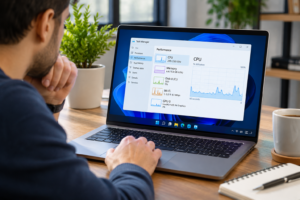
There’s a useful tool already installed on Windows that many people overlook.
Press Ctrl + Shift + Esc to open Task Manager. You should see a list of running applications along with columns showing processor, memory, and disk activity.
Click the Memory heading, for example, and the programs using the most memory will move toward the top.
Perhaps you’ve got a browser running several video tabs alongside a photo editor and a messaging application. Individually, none of them may cause much trouble. Running them together is another story.
Don’t start ending processes with unfamiliar names. Some belong to Windows itself. Close recognizable applications you aren’t using and see whether that makes a difference.
3. Stop Apps From Opening Every Time You Sign In
Remember that printer software you installed two years ago? It might still be launching every morning, even though the printer itself is gathering dust somewhere in a cupboard.
Game launchers, messaging services, music applications, and various desktop utilities can all add themselves to the startup list.
To see what’s opening automatically on Windows 11:
- Press Ctrl + Shift + Esc.
- Open the Startup apps section.
- Look through the enabled applications.
- Disable the ones you don’t need when signing in.
Disabling a startup application doesn’t uninstall it. You can still open it normally whenever you need it.
Leave antivirus protection and essential hardware utilities alone. Microsoft’s startup application guide offers further instructions if you’re unsure about the settings.
4. Have a Look at What’s Filling Your Storage
Downloading a large video takes seconds to forget about. Finding that video three years later is another matter.
Most computers accumulate an assortment of old installers, duplicate photographs, downloaded movies, and forgotten project files. On a device with limited storage, those files gradually leave less breathing room for Windows.
Open File Explorer, select This PC, and check how much space remains on your main drive.
If it’s nearly full, start with things you recognize. Large video files and abandoned applications are usually better places to look than folders containing unfamiliar system files.
Move photographs, documents, and anything irreplaceable to a verified backup before deleting the originals. Getting a faster computer isn’t much consolation if you’ve accidentally lost ten years of family pictures.
5. How to Clear Cache on Windows 11
The word cache sounds more technical than it needs to. Think of it as a collection of information your computer keeps nearby so it doesn’t have to fetch the same material repeatedly.
That’s useful most of the time. However, temporary files can build up, and occasionally cached information causes problems with individual applications.
Windows provides its own cleanup options. You don’t need to download a program covered in flashing advertisements promising to repair thousands of supposed errors.
Remove Temporary Files From Windows
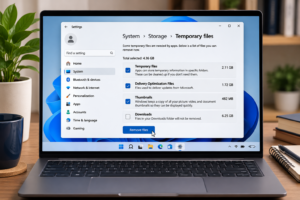
- Open the Start menu and select Settings.
- Choose System.
- Open Storage.
- Select Temporary files.
- Read through the available categories.
- Select the files you want to remove and click Remove files.
Be particularly careful with Downloads. If Windows lists that folder among its cleanup options, selecting it could remove files you’ve deliberately saved there.
Set Up Storage Sense
Storage Sense is worth exploring if you’re the sort of person who only remembers to clean up a computer when Windows starts complaining about available space.
You’ll find it under Settings, System, and Storage.
It can handle certain routine cleanup tasks automatically. Review the settings first, especially anything involving the Downloads folder or Recycle Bin.
Microsoft explains these options in its Windows storage guide.
Clearing temporary files can help when storage is tight, but don’t expect it to turn an old entry-level laptop into a high-performance workstation.
6. Give Your Browser a Break
How many browser tabs have you got open right now?
There might be an unfinished email, a couple of shopping pages, three articles you intend to read later, and a video paused somewhere among them.
The browser has to manage all of that. Depending on the websites involved, some tabs may continue running scripts or refreshing information even when you’re looking at something else.
Bookmark the pages you want to revisit and close what you no longer need.
While you’re there, review your browser extensions. That coupon finder or screenshot utility you installed ages ago may still be active. Remove extensions you no longer use.
If a particular website keeps displaying incorrectly, try clearing cached images and files through your browser’s privacy settings. You usually don’t need to erase saved passwords or all browsing history just to resolve a loading problem.
7. Uninstall the Programs You’ve Forgotten About
Think back to the last time you looked through every application installed on your computer. Chances are, there are a few names you haven’t seen in years.
Perhaps you downloaded a video editor for one birthday project. Or installed three PDF applications while looking for a particular feature.
Open Settings, select Apps, and choose Installed apps. Work through the list and uninstall software you recognize but no longer require.
Sorting by size can help you spot larger installations.
Be sensible about what you remove. An unfamiliar name doesn’t automatically mean a program is unnecessary. Some components support other applications or connected hardware.
If you don’t know what something does, look it up before uninstalling it.
8. Check for Malware if the Slowdown Appeared Suddenly
A computer that gradually struggles with newer software isn’t necessarily infected. A device that worked perfectly yesterday but now displays strange advertisements and redirects your browser deserves more attention.
Other warning signs include unfamiliar programs appearing without explanation or unusually heavy background activity.
Open Windows Security and go to Virus & threat protection. Run a Quick scan to begin with. If the computer continues behaving strangely, a Full scan may be appropriate.
Avoid trusting pop-up messages that tell you to install a particular antivirus program immediately. Some of those messages are advertisements designed to frighten people into downloading unwanted software.
Use security tools from sources you recognize and keep their protection updates current.
9. Don’t Keep Postponing Windows Updates
Nobody enjoys being told that an update needs to install five minutes before an important meeting.
Still, leaving necessary updates unfinished for weeks can create problems of its own. Software bugs, compatibility issues, and outdated drivers sometimes contribute to poor performance.
Check Windows Update through the Settings menu. Install appropriate updates when you’ve got enough time to restart the computer afterward.
For graphics, wireless, or other hardware drivers, use Windows Update or the manufacturer’s official support website.
Interestingly, the timing of an update can also help with troubleshooting. If your computer started freezing immediately after installing a particular driver or application update, make a note of it. That information could help you identify what’s gone wrong.
10. Move Your Laptop Off the Sofa
A laptop sitting on a thick blanket might be comfortable to use, but it isn’t necessarily comfortable for the laptop.
Many computers draw air through openings underneath or around the sides. Soft furnishings can obstruct these vents, making it harder for heat to escape.
When internal temperatures rise too far, the processor may reduce its operating speed to protect itself. You might notice games becoming choppy or ordinary applications getting slower as the laptop warms up.
Try using the device on a clean, hard surface.
If the fan sounds unusually loud even during basic tasks, or the computer repeatedly shuts down because of heat, arrange an inspection. Internal dust buildup or a damaged cooling component may require servicing.
A swollen battery is a separate safety concern. Stop using and charging the device if you notice swelling, and have it professionally assessed.
11. Work Out Whether You’ve Run Out of Memory
Picture a small kitchen counter. Preparing one meal is easy enough, but things become awkward when you’re trying to make several dishes and there’s nowhere left to put anything.
RAM works a little like that counter. It provides temporary working space for the applications your computer is using.
Open Task Manager, select Performance, and choose Memory. Check the figures while you’re doing the activities that normally cause problems.
If memory remains almost completely occupied whenever you’re working, additional RAM might be worth considering.
| RAM Capacity | Typical Suitable Workload |
|---|---|
| 4 GB | Very light tasks with significant limitations |
| 8 GB | Basic browsing, documents, and lighter everyday work |
| 16 GB | More comfortable multitasking and general productivity |
| 32 GB or more | Demanding creative applications and heavier workloads |
These are general suggestions rather than guaranteed performance levels. The processor, storage drive, operating system, and applications also matter.
Check your laptop’s specifications before ordering additional memory. Some models have soldered RAM that can’t be upgraded.
12. An Old Hard Drive Might Be Holding Everything Back
There’s a noticeable difference between waiting for an application to process complicated information and waiting for it to open in the first place.
Older mechanical hard drives can struggle with the constant file access expected by modern operating systems. Even starting Windows may involve a considerable amount of waiting.
If your computer still uses a traditional hard drive, replacing it with a compatible solid-state drive could improve everyday responsiveness.
You can check the drive type through Task Manager’s Performance section on many Windows computers.
However, if your device already has an SSD, buying another one won’t necessarily help. Find out what’s causing the slowdown first.
Back up your files before undertaking any storage replacement. If you’re unfamiliar with transferring Windows to another drive, getting professional assistance may be worthwhile.
Why Does My Computer Keep Freezing?
A slow computer is frustrating, but at least it eventually responds. Freezing is different. You move the mouse, click something, and suddenly nothing seems to work.
Try pressing Ctrl + Shift + Esc when this happens. If Task Manager opens, Windows may still be functioning even though an individual application has stopped responding.
Closing the unresponsive application might allow you to continue working. Bear in mind that doing so could mean losing unsaved changes.
Does It Freeze During a Particular Activity?
Pay attention to the circumstances surrounding the problem.
If your computer freezes whenever you edit a large photograph, available memory or graphics performance might be involved. If it only happens during one particular game, investigate that game’s requirements and settings.
Freezing at completely random times is harder to narrow down. Heat, storage problems, unstable drivers, or failing hardware are all possibilities.
Look at Windows Reliability History
There’s another Windows feature worth knowing about.
Open the Start menu, search for View reliability history, and open the result.
You’ll find a timeline showing certain application crashes, Windows failures, and recorded events. Look for problems occurring around the times you’ve noticed the computer freezing.
The information doesn’t always provide a straightforward answer, but repeated failures involving the same application can give you somewhere to begin.
If your computer starts losing files, producing unusual clicking noises from a mechanical drive, or repeatedly displaying storage warnings, treat the situation seriously.
Microsoft recommends backing up data when Windows reports a critical storage device warning. Continued attempts to speed up a failing drive aren’t a substitute for protecting your files.
How to Make Your Computer Run Faster Without Spending Money
You don’t need to spend an entire weekend maintaining your computer. Try setting aside half an hour and working through the obvious problems.
Begin with a restart. Have a look at Task Manager afterward, review the startup applications, and check your available storage.
Then move on to browser extensions, temporary files, and software you no longer use.
| Maintenance Activity | Approximate Time |
|---|---|
| Restart and inspect Task Manager | 5 minutes |
| Review startup applications | 5 minutes |
| Check temporary files | 5–10 minutes |
| Remove unwanted applications | 10 minutes |
| Review browser extensions | 5 minutes |
These are approximate times for reviewing and starting each task. Actual file removal, scanning, and updates may take longer.
One useful habit is making changes separately. If you alter twenty settings at once, you won’t know which one helped or which one introduced a new problem.
Try using the computer normally between changes. Sometimes the improvement becomes obvious without needing any special benchmarking software.
When Is It Better to Replace a Computer?
There’s little point spending $800 on a new computer if a modest storage upgrade would make your existing one perfectly suitable for another couple of years.
On the other hand, repeatedly paying to repair a laptop with a failing battery, limited memory, damaged hinges, and an outdated processor may not make much financial sense.
Think about what you actually do with the device.
Someone who mainly checks email, writes documents, and watches videos doesn’t necessarily need the same hardware as someone editing high-resolution footage or playing demanding games.
Operating system support matters, too. A computer that can no longer run a suitably supported and secure operating system may present problems beyond its performance.
Check repair costs, upgrade possibilities, and replacement prices before deciding. There’s no universal age at which a computer suddenly stops being useful.
Final Thoughts
A computer that starts feeling slow isn’t automatically ready for the recycling bin.
Begin with the things you can investigate yourself. Find out what’s running in the background, look at your remaining storage, and notice when the performance problems actually occur.
You might discover that an unnecessary application has been making every morning’s startup slower. Perhaps the browser simply has more open tabs than your computer can comfortably manage.
If the problem turns out to be old hardware, at least you’ll know where your money is best spent.
And if the computer repeatedly crashes or reports storage problems, look after your important files before worrying about anything else.
Frequently Asked Questions
Why is my computer suddenly running so slowly?
Think about what’s changed recently. A new application, unfinished update, or background process could be responsible. Check Task Manager first, particularly if the computer was working normally only a day earlier.
Will deleting files make my computer faster?
It may help if your storage drive is nearly full. Start with large downloads and unused applications. Deleting small documents from a drive with plenty of free space probably won’t make much difference.
How often should I clear my computer’s cache?
There’s no fixed schedule you need to follow. Clear temporary files when storage becomes limited or when an application develops cache-related problems. Removing useful cached information unnecessarily may temporarily slow loading times.
Why does my computer freeze even though I have enough RAM?
Memory isn’t the only possible explanation. A problematic driver, overheating processor, software conflict, or failing storage drive can also cause freezing. Notice when the problem occurs and investigate those circumstances.
Can an old laptop become faster without buying a new one?
Possibly. Replacing a mechanical hard drive with an SSD or adding compatible RAM may help. The improvement depends on what’s limiting performance and whether the laptop supports the proposed upgrade.
Should I install a program that promises to boost PC speed?
Be cautious. Windows already includes tools for managing startup applications, storage, security, and system resources. Avoid programs making exaggerated performance claims, particularly those that modify system settings without explaining what they’re changing.
For more straightforward software guides, computer maintenance advice, and everyday troubleshooting tips, explore additional articles at Tech Team.